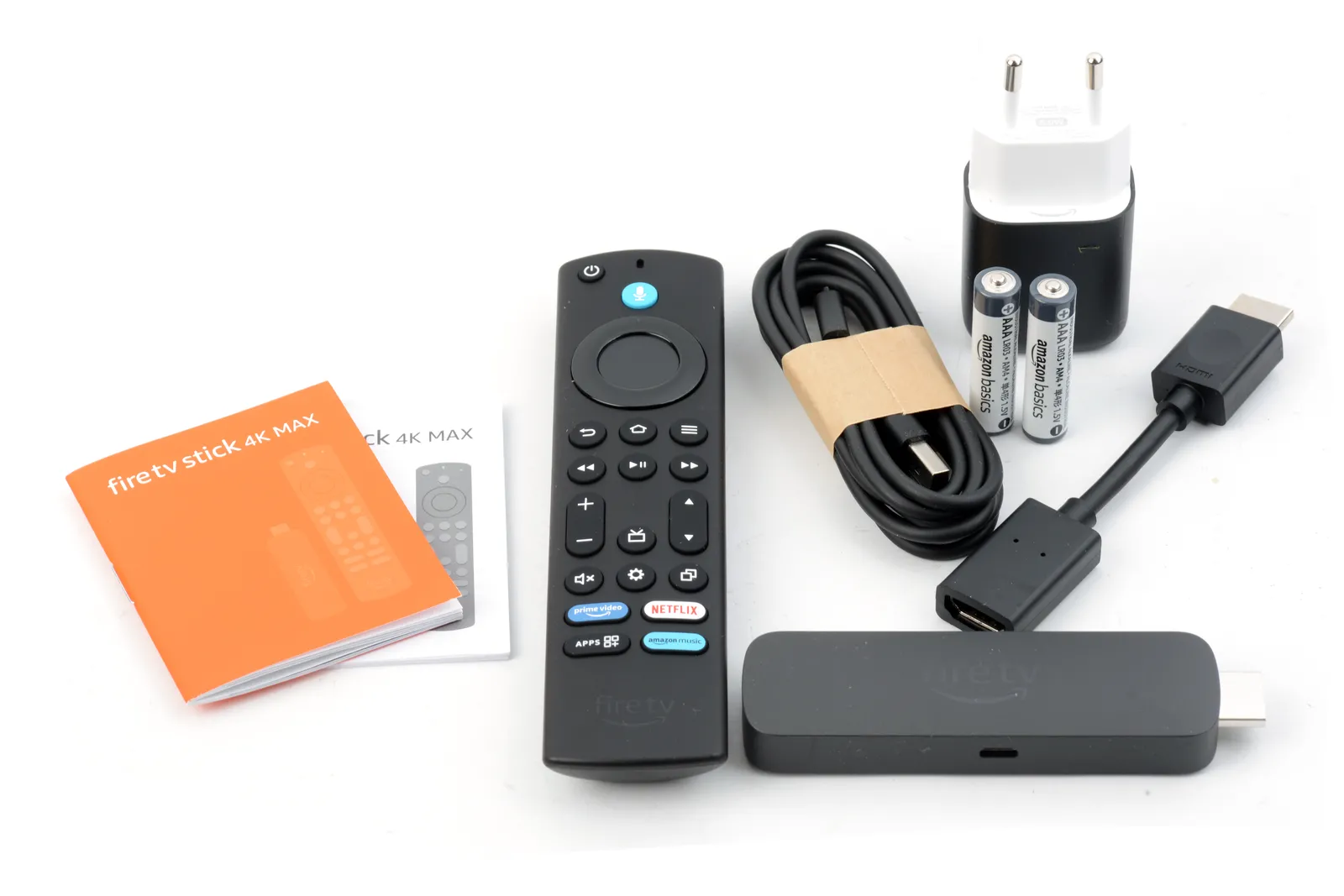
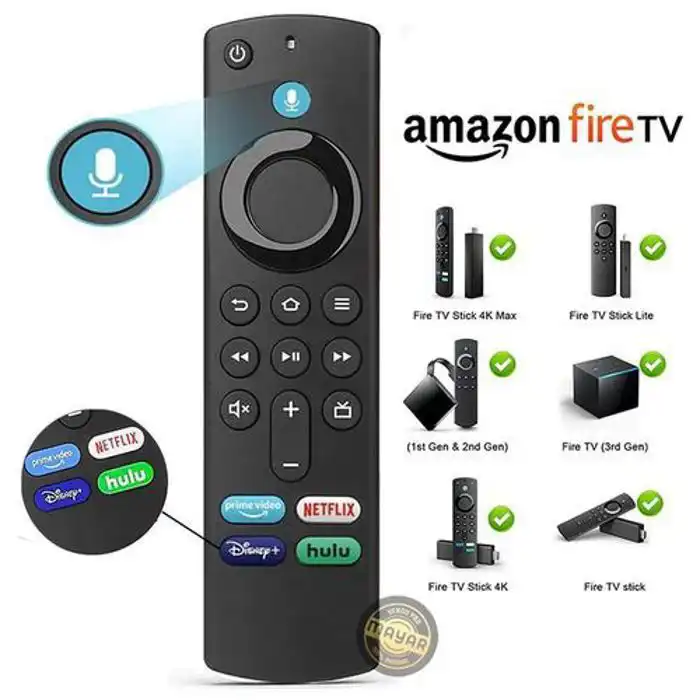
All Amazon Fire Stick models supported:
- Can You Download IPTV on Firestick?
- What You Need Before You Start
- The Two Methods to Get IPTV on Firestick
- Method 1 — Install Smarters Pro from the Amazon Appstore (Easiest)
- Method 2 — Sideload TiviMate via Downloader (Best TV Guide)
- How to Add Your IPTV Subscription to the App
- Best IPTV Apps for Fire Stick 2026 — Compared
- Best IPTV Settings for Fire Stick
- Getting Canadian Channels on Your Fire Stick IPTV
- Should You Use Ethernet or Wi-Fi on Fire Stick?
- Getting 4K IPTV on Fire Stick
- What Reddit Says About IPTV on Fire Stick (r/iptv Community Tips)
- Which Fire Stick Is Best for IPTV in 2026?
- Troubleshooting IPTV on Fire Stick
- Frequently Asked Questions
- Conclusion
01 Can You Download IPTV on a Firestick?
Yes — you can absolutely download and use IPTV on a Firestick, and it is one of the most popular IPTV setups in Canada and worldwide. The Amazon Fire Stick is essentially a compact Android computer that connects to your TV via HDMI. It runs applications just like a phone does — including IPTV player apps that let you stream live TV, sports, movies, and on-demand content from your IPTV subscription.
There are two ways to get an IPTV app onto your Fire Stick:
Both methods are completely safe and widely used. Millions of Fire Stick users worldwide run IPTV apps through both methods. The Fire Stick's open Android-based operating system (Fire OS) was designed to support both Appstore apps and sideloaded APKs.
02 What You Need Before You Start
Before installing IPTV on your Fire Stick, make sure you have everything in order:
| Requirement | What It Is | Where to Get It |
|---|---|---|
| 🔥 Amazon Fire Stick | Any model — plugged into your TV's HDMI port and powered on | Amazon.ca or retail stores (~$35–$90 CAD) |
| 📶 Internet Connection | Wi-Fi or Ethernet. Min 10 Mbps stable for HD, 25+ Mbps for 4K | Your existing home internet |
| 🔑 IPTV Subscription | Server URL + username + password (Xtream Codes) or M3U URL | IPTV Canada 4K free trial |
| 📧 Amazon Account | Fire Stick registered to your Amazon account (standard setup) | Already set up when you first used the Fire Stick |
✅ Don't Have an IPTV Subscription Yet?
Sign up for a free trial at IPTV Canada 4K. You receive your server URL, username, and password instantly — no credit card required. The trial includes all 20,000+ channels including Canadian sports (TSN, Sportsnet, CBC, RDS) and 4K streams. Get your credentials first, then follow this guide to set up IPTV on your Fire Stick.
03 The Two Methods to Get IPTV on Firestick
Before diving into the step-by-step instructions, here is a clear comparison of the two installation methods so you can choose the right one for your situation:
| Factor | Method 1: Amazon Appstore (Smarters Pro) | Method 2: Sideload via Downloader (TiviMate) |
|---|---|---|
| Difficulty | ⭐ Very easy | ⭐⭐ Moderate (15 min) |
| App Available | ✓ Direct from Appstore | APK download required |
| Computer Needed? | ✗ No | ✗ No |
| EPG/TV Guide | Good | Excellent (best available) |
| Channel Switch Speed | Good | Fastest |
| Recording Feature | ✗ No | ✓ Premium ($5/yr) |
| Multiple Playlists | ✓ Yes | Premium only |
| Best For | Beginners, quick setup | Power users, best TV guide experience |
| Free? | ✓ Completely free | ✓ Free (Premium optional) |
Our recommendation: If you've never used IPTV before, start with Method 1 (IPTV Smarters Pro from the Appstore) — it's simpler and you'll be watching in under 10 minutes. Once you're comfortable, come back and add TiviMate via Method 2 if you want the best possible TV guide experience.
04 Method 1 — Install IPTV Smarters Pro from the Amazon Appstore
This is the easiest way to get IPTV on your Fire Stick. IPTV Smarters Pro is available directly in the Amazon Appstore — no sideloading, no Downloader, no Developer Options needed. Just search, install, and set up.
On the Fire Stick home screen, navigate to the search icon (magnifying glass) at the top of the screen. Alternatively, press the microphone button on your Alexa remote and say "IPTV Smarters Pro" — Alexa voice search is the fastest way to find apps.
Type IPTV Smarters Pro using the on-screen keyboard. Navigate each key using the directional pad on your remote and press Select/OK to choose each letter. After typing, press the Search button or navigate to the search results tile and press OK.
In the search results, select IPTV Smarters Pro (by Smarterspro). On the app detail page, press Get or Download. The app is free. Installation takes 30–60 seconds. You will see a progress bar as it downloads and installs.
After installation, press Open on the confirmation screen, or navigate to Your Apps & Channels on the home screen and find IPTV Smarters Pro. The app launches and shows a welcome screen prompting you to add your IPTV subscription.
IPTV Smarters Pro is now installed on your Fire Stick. Jump to Section 6 — Add Your IPTV Subscription to complete the setup and start watching channels.
05 Method 2 — Sideload TiviMate via Downloader (Best TV Guide)
TiviMate is not in the Amazon Appstore, so it needs to be installed via a process called sideloading — downloading the APK file directly onto your Fire Stick using the Downloader app. This sounds technical but takes about 15 minutes and the result is the best IPTV experience available on Fire Stick. Here is the complete process:
Part A — Enable Unknown Sources (One-Time Setup)
From the Fire Stick home screen, navigate to Settings (gear icon top-right) → My Fire TV.
Inside My Fire TV, select Developer Options. Enable both:
If you are on Fire OS 8+ (Fire Stick 4K Max), these toggles may look slightly different — look for "Install Unknown Apps" which is configured per-app in the next step.
Part B — Install the Downloader App
Go to the Fire Stick home screen → Search → type Downloader. Install the free Downloader by AFTVnews app (orange icon with downward arrow). This is the standard sideloading tool used by the entire Fire Stick community. Install takes under a minute.
Navigate to Settings → Applications → Manage Installed Applications → Downloader → Allow from this source → ON. This specifically grants the Downloader app permission to install APK files.
Part C — Download and Install TiviMate
Open the Downloader app. Select the URL field at the top and type the TiviMate APK download URL:
Press Go. Downloader downloads the TiviMate APK (10–25 MB) — typically takes 15–45 seconds.
After the download finishes, an installation prompt appears automatically. Press Install and wait 10–20 seconds. When done, press Open to launch TiviMate, or Done to return to Downloader. You can delete the downloaded APK file to free space — Downloader will prompt you to delete after install.
TiviMate appears in your Fire Stick apps. Long-press it and select "Move to front" to add it to your home screen row for quick access. Then continue to Section 6 to connect your IPTV subscription.
Pro tip: You can have both IPTV Smarters Pro (from Appstore) and TiviMate (sideloaded) installed on your Fire Stick simultaneously. Many Canadian IPTV users use Smarters Pro for VOD browsing (better interface for movies) and TiviMate for live TV (better EPG for sports scheduling). Both apps use the same IPTV subscription credentials.
06 How to Add Your IPTV Subscription to the App
Whether you installed IPTV Smarters Pro or TiviMate, the process to connect your IPTV subscription is similar. Here is how to do it in both apps:
In IPTV Smarters Pro (Fire Stick)
On first launch, the app shows an "Add User" button prominently. Tap it. Select "Login with Xtream Codes API" — this is the recommended connection method for most IPTV subscriptions.
Using the on-screen keyboard, carefully enter:
- Any Name: A label for this subscription profile (e.g., "IPTV Canada 4K")
- Username: Your IPTV account username
- Password: Your IPTV account password
- URL: Your IPTV server URL (e.g.,
http://server.example.com:8080)
Tip: On Fire Stick, typing with the remote is slow. Consider using the Amazon Fire TV app on your phone to use your phone keyboard for text entry — it pairs wirelessly and makes credential entry much faster.
Press Add User. The app connects to your provider's server and downloads your channel list, EPG data, and VOD library. This initial load takes 30 seconds to 3 minutes. When complete, the main menu appears with Live TV, Movies, and Series options.
In TiviMate (Fire Stick)
TiviMate opens to a welcome screen. Select Add Playlist. Choose Xtream Codes (for server/username/password) or M3U Playlist (for M3U URL).
Enter your server URL, username, and password. Use the Fire TV app on your phone for faster keyboard entry. Tap Add and wait for TiviMate to download and process your channel list. TiviMate automatically loads EPG data from Xtream Codes subscriptions.
Once loaded, create a Canada Sports favourites group with TSN1–5, Sportsnet, RDS for fast access to Canadian sports channels. Navigate to Live TV and press Guide to see TiviMate's beautiful grid EPG.
07 Best IPTV Apps for Fire Stick 2026 — Full Comparison
Beyond Smarters Pro and TiviMate, there are several other IPTV apps that work on Fire Stick. Here is the complete rundown:
| App | Install Method | EPG Quality | VOD Support | Recording | Best For |
|---|---|---|---|---|---|
| IPTV Smarters Pro | Appstore ✓ | Good | Excellent | ✗ | Beginners, VOD users |
| TiviMate | Sideload | Best-in-class | Basic | Premium | Live TV & sports fans |
| Kodi | Appstore ✓ | Very good | Extensive | Yes | Power users |
| Perfect Player | Sideload | Basic | Basic | ✗ | Older/slower Fire Sticks |
| OTT Navigator | Sideload | Very good | Good | Premium | TiviMate alternative |
08 Best IPTV Settings for Fire Stick
Once your IPTV app is installed and subscription loaded, these settings deliver the best experience on Fire Stick — particularly for Canadian viewers watching live sports:
09 Getting Canadian Channels on Your Fire Stick IPTV
For Canadian viewers, having access to the right channels is what makes or breaks an IPTV subscription. Here is what a quality Canadian IPTV subscription should deliver on your Fire Stick:
| Channel Category | Channels Included | Why It Matters |
|---|---|---|
| 🏒 Canadian Sports | TSN1–5, Sportsnet (all feeds), RDS, TVA Sports | Full NHL, CFL, NBA, NFL, FIFA coverage — no sports add-ons needed |
| 📡 Canadian Broadcast | CBC, CTV, Global, City TV, Radio-Canada, TVA, Noovo | Local news, primetime shows, Canadian content |
| 📰 Canadian News | CBC News Network, CP24, CTV News Channel, BNN Bloomberg, ICI RDI | Breaking news, financial news, regional updates |
| 🇺🇸 US Networks | ABC, CBS, NBC, Fox, PBS, ESPN, CNN, Fox News, MSNBC, HBO | US primetime, sports, news — all simulcast on Canadian IPTV |
| ⚽ International Sports | beIN Sports, Sky Sports, Eurosport, BT Sport | Premier League, Champions League, international soccer |
| 🌍 International | 100+ countries — Arabic, South Asian, Portuguese, French, etc. | Multicultural content for diverse Canadian households |
How to Find Canadian Channels Quickly
In IPTV Smarters Pro on Fire Stick: tap Live TV → use the search function (magnifying glass) and type "TSN" or "CBC" — the channel appears instantly. In TiviMate: from the channel list, press the search button on your remote and type the channel name. Create a Canada Favourites group for daily quick access.
10 Should You Use Ethernet or Wi-Fi for IPTV on Fire Stick?
This is the most impactful hardware decision for IPTV on Fire Stick — and the answer is always the same: use Ethernet if at all possible.
| Factor | Ethernet (Wired) | Wi-Fi 5 (2.4GHz) | Wi-Fi 5 (5GHz) | Wi-Fi 6 (Fire Stick 4K Max) |
|---|---|---|---|---|
| Latency (ping) | 1–3ms | 15–80ms variable | 5–30ms variable | 3–15ms variable |
| Stability | Excellent — no drops | Poor — prone to interference | Good when close to router | Very good |
| 4K IPTV performance | Excellent | Often struggles | Good within range | Very good |
| Buffering risk | Very low | High during peak hours | Moderate | Low–Moderate |
| Setup requirement | OTG/micro-USB Ethernet adapter (~$15) | None | Must be within range | None (built-in) |
How to Add Ethernet to a Fire Stick
The standard Fire Stick models do not have a built-in Ethernet port. You can add wired connectivity with:
- Micro-USB to Ethernet adapter — for older Fire Stick models (Fire Stick 3rd gen, 4K 1st gen). The official Amazon Ethernet adapter ($15 CAD) plugs into the micro-USB port with a separate power supply.
- USB-C to Ethernet adapter — for Fire Stick 4K Max (Gen 2) which uses USB-C.
- Powerline adapter kit — plug one adapter into a wall outlet near your router, another near your TV. Sends internet through your home's electrical wiring. No Ethernet cable running across rooms required. Best option when you can't run cable.
🏒 For NHL Playoff Games and World Cup Matches
During the highest-demand IPTV moments — Stanley Cup game 7, Canada vs. Bosnia at the World Cup, Super Bowl — your Wi-Fi network is competing with every other device in your home. A wired Ethernet connection to your Fire Stick eliminates this competition entirely and virtually guarantees a buffer-free stream regardless of household network congestion.
11 Getting 4K IPTV on Fire Stick
The Fire Stick 4K Max is purpose-built for 4K streaming and is the ideal device for 4K IPTV in Canada. Here is what you need to ensure you are actually getting 4K from your IPTV subscription on Fire Stick:
- ✅ Fire Stick 4K or 4K Max — the standard Fire Stick (non-4K) outputs maximum 1080p
- ✅ 4K IPTV subscription — confirm your IPTV plan includes 4K streams (not all providers offer 4K)
- ✅ 4K TV with HDMI 2.0+ — your television must support 4K input
- ✅ HDMI 2.0 cable — use the cable included with your Fire Stick 4K Max
- ✅ Hardware decoding enabled — in your IPTV app settings (see Section 8)
- ✅ 25–40 Mbps stable internet — per 4K stream (use wired Ethernet for best results)
- ✅ Display resolution set to 4K — Settings → Display → Video Resolution → 4K Ultra HD
To verify you're getting 4K IPTV on Fire Stick: while watching a 4K IPTV channel, press and hold the Select/OK button and the Down button simultaneously on your remote for 5 seconds. This opens the Hidden Developer Menu on Fire Stick which shows the current video output resolution — it should show 2160p (4K) for 4K content.
12 What Reddit Says About IPTV on Fire Stick
The r/iptv and r/firetvstick subreddits are large, active communities where Fire Stick IPTV users share real-world tips, app recommendations, and troubleshooting advice. Here are the most consistently cited recommendations from these communities for Canadian users:
Top Tips from the Reddit IPTV Community
- "Always test your subscription with a trial before paying" — This is the unanimous #1 piece of advice. Never pay for a full subscription without verifying stream quality on your specific network and device during peak hours.
- "TiviMate is worth the sideload effort — the EPG alone makes it superior to Smarters Pro for live TV" — Users consistently rate TiviMate's EPG grid as the best IPTV interface on Fire Stick.
- "Get an Ethernet adapter for your Fire Stick — it's a $15 fix that eliminates 90% of buffering issues" — The most common fix recommended for buffering problems is adding wired connectivity.
- "Don't fall for 'lifetime subscriptions' or suspiciously cheap services" — The community is vocal about avoiding scam providers. Any service offering "lifetime" access for a flat fee is universally flagged.
- "The Fire Stick 4K Max is worth the upgrade from the standard Fire Stick specifically for IPTV" — The processor and Wi-Fi 6 make a noticeable difference for large channel lists and 4K streams.
- "Clear your IPTV app cache regularly" — Fire Stick has limited RAM. Clearing the TiviMate or Smarters Pro cache periodically (Settings → Apps → app → Clear Cache) improves performance and prevents crashes over time.
- "Use the Fire TV mobile app on your phone as a keyboard when entering credentials" — Typing on the Fire Stick remote is painful. The free Amazon Fire TV app on iPhone/Android lets you use your phone keyboard wirelessly.
13 Which Fire Stick Is Best for IPTV in 2026?
If you're buying a Fire Stick specifically for IPTV, here is a frank breakdown of how each model performs:
| Fire Stick Model | Processor | 4K IPTV | Wi-Fi | IPTV Performance | Verdict |
|---|---|---|---|---|---|
| 🥇 Fire Stick 4K Max (Gen 2) | 2GHz octa-core | ✓ 4K HDR10+ | Wi-Fi 6 | Excellent | Best choice — buy this |
| 🥈 Fire TV Cube (3rd Gen) | 2.2GHz octa-core | ✓ 4K HDR | Wi-Fi 6 + Ethernet | Excellent | Premium — built-in Ethernet |
| Fire Stick 4K (2nd Gen) | 1.7GHz quad-core | ✓ 4K HDR | Wi-Fi 6 | Very good | Good choice, slightly slower |
| Fire Stick (3rd Gen, 1080p) | 1.7GHz quad-core | ✗ 1080p max | Wi-Fi 5 | Good for HD IPTV | Fine for HD, not for 4K |
| Fire Stick Lite | 1.7GHz quad-core | ✗ 1080p max | Wi-Fi 5 | Acceptable | Budget option — HD only |
The Fire Stick 4K Max (Gen 2) is the clear recommendation for IPTV in 2026. At approximately $70 CAD (regularly on sale for $50 during Amazon Prime Day / Black Friday), it offers the best combination of processing power, 4K hardware decoding, Wi-Fi 6, and compatibility with all IPTV apps. The savings from switching from cable to IPTV pay for the Fire Stick in the first month.
14 Troubleshooting IPTV on Fire Stick
Fix: If IPTV Smarters Pro doesn't appear in the Appstore search, use Method 2 (Downloader sideload) — the same process used for TiviMate. Download the Smarters Pro APK from the official IPTV Smarters website. Alternatively, search for "Smarters IPTV Player" as the app name may appear slightly differently in some regional Appstores.
Fixes:
1. Double-check every character of your server URL, username, and password. Copy from your welcome email carefully — a single space or wrong character causes this error.
2. Verify your subscription is active by logging into your provider's website.
3. Check if you've exceeded your plan's connection limit — if another device is already using the same credentials, you may need a plan with more connections.
4. The server URL format matters — confirm whether it should include
http:// or https:// and whether the port number is required.
Fixes (in order of effectiveness):
1. Switch to Ethernet: Buy a micro-USB to Ethernet adapter (~$15) — this single change fixes most buffering on Fire Stick.
2. Enable Hardware Decoding in your IPTV app settings → Playback.
3. Switch from 2.4GHz to 5GHz Wi-Fi on your Fire Stick network settings if Ethernet isn't possible.
4. Reduce stream quality: Switch from 4K to 1080p stream option if one exists — lower bitrate reduces bandwidth requirements.
5. Test at different times: If buffering only happens evenings, the IPTV server is congested — consider a different provider.
Fixes:
1. Go to your IPTV app settings → EPG → verify the EPG URL is entered.
2. Force a manual EPG refresh (Settings → EPG → Update Now).
3. If using M3U playlist: ask your provider for the EPG XMLTV URL and add it manually.
4. If EPG shows for some channels but not others: use TiviMate's manual EPG channel mapping feature to link specific channels to their EPG data.
Fixes:
1. Clear app cache: Settings → Applications → Manage Installed Applications → your IPTV app → Clear Cache.
2. Restart Fire Stick: Settings → My Fire TV → Restart (or unplug for 30 seconds).
3. Close background apps: Long press Home button → Recent Apps → close everything else running.
4. Update the app: Re-download the latest APK (for sideloaded apps) or check the Appstore for updates.
5. Free up storage: Uninstall apps you don't use — Fire Stick's limited storage can cause performance issues.
Fix: Return to Settings → My Fire TV → Developer Options → confirm Apps from Unknown Sources is ON. Then go to Settings → Applications → Manage Installed Applications → Downloader → Allow from this source → ON. Retry the installation from Downloader. If you still see a block, restart your Fire Stick and try again.
Get IPTV on Your Fire Stick Today
IPTV Canada 4K works perfectly with both IPTV Smarters Pro and TiviMate on all Fire Stick models. 20,000+ channels, 4K quality, Canadian sports, free trial — no credit card required.
🔥 Start Free Trial — Works on Firestick15 Frequently Asked Questions
16 Conclusion — Getting IPTV on Firestick Is Easier Than You Think
Getting IPTV on your Fire Stick is a straightforward process that takes 10–20 minutes and delivers a TV experience that cable TV cannot match — thousands of channels, 4K quality, a beautiful TV guide, live Canadian sports, and no monthly cable bill.
To recap the complete process:
- Get an IPTV subscription — start with a free trial at IPTV Canada 4K, receive your Xtream Codes credentials
- Method 1 (easiest): Search "IPTV Smarters Pro" in the Amazon Appstore → Install free → Add your credentials → Watch
- Method 2 (best EPG): Enable Unknown Sources → Install Downloader from Appstore → Download TiviMate APK → Install → Add subscription
- Optimize: Enable hardware decoding, add Ethernet adapter, create Canada Sports favourites, set screen timeout to never
- Cancel cable — after confirming IPTV meets all your needs during the trial period
The Fire Stick 4K Max at ~$70 CAD combined with an IPTV subscription at $15/month gives you a better TV experience than a $150/month cable package — and the savings add up to over $1,500 CAD per year. There has never been a better time to make the switch.